


You know that feeling when you face a blank page? Your expensive sketch paper sits there, waiting. The pressure builds. Getting proportions right feels impossible before you even start.
Artists have faced this problem for centuries. Masters like Vermeer found a solution. They used optical tools called Camera Lucidas. These devices helped bridge the gap between what they saw and what they drew. Your phone can do the same thing now. AR apps project images right onto your paper. They train your eye for accuracy. This isn't cheating. It's smart practice.
The Heavyweights: Da Vinci Eye Vs. Sketchar
Two apps dominate the AR drawing space. Both project images onto your workspace. But they serve different needs. Understanding which fits your goals matters.
Da Vinci Eye (The Pro Tool)
Da Vinci Eye stands out as the professional choice. This isn't just another tracing app. It's a complete toolkit for serious artists.

The Strobe feature changes everything. Your projected image blinks at set intervals. You can compare your pencil marks to the reference constantly. Think of it as instant feedback for your brain. Your values and placement get corrected in real time.
Breakdown Mode takes any photo and splits it apart. The app analyzes your reference image. It separates everything into five distinct layers. Dark values go in one layer. Mid-tones in another. Highlights get their own space. Complex portraits become manageable steps. Painters love this feature. It shows exactly where each value belongs.
The app works across iOS, Android, and VisionOS. Professional illustrators use it. Tattoo artists rely on it. Even makeup artists trust it for face mapping. The Android version costs $19.99. No subscription needed.
Sketchar (The Teacher)
Sketchar takes a different approach. This app wants to teach you. It focuses on building your skills, not just finishing pieces.
An AI mentor guides your practice. Lessons adapt to where you are. The app gamifies everything. Daily challenges keep you engaged. Complete specific tasks and earn rewards.
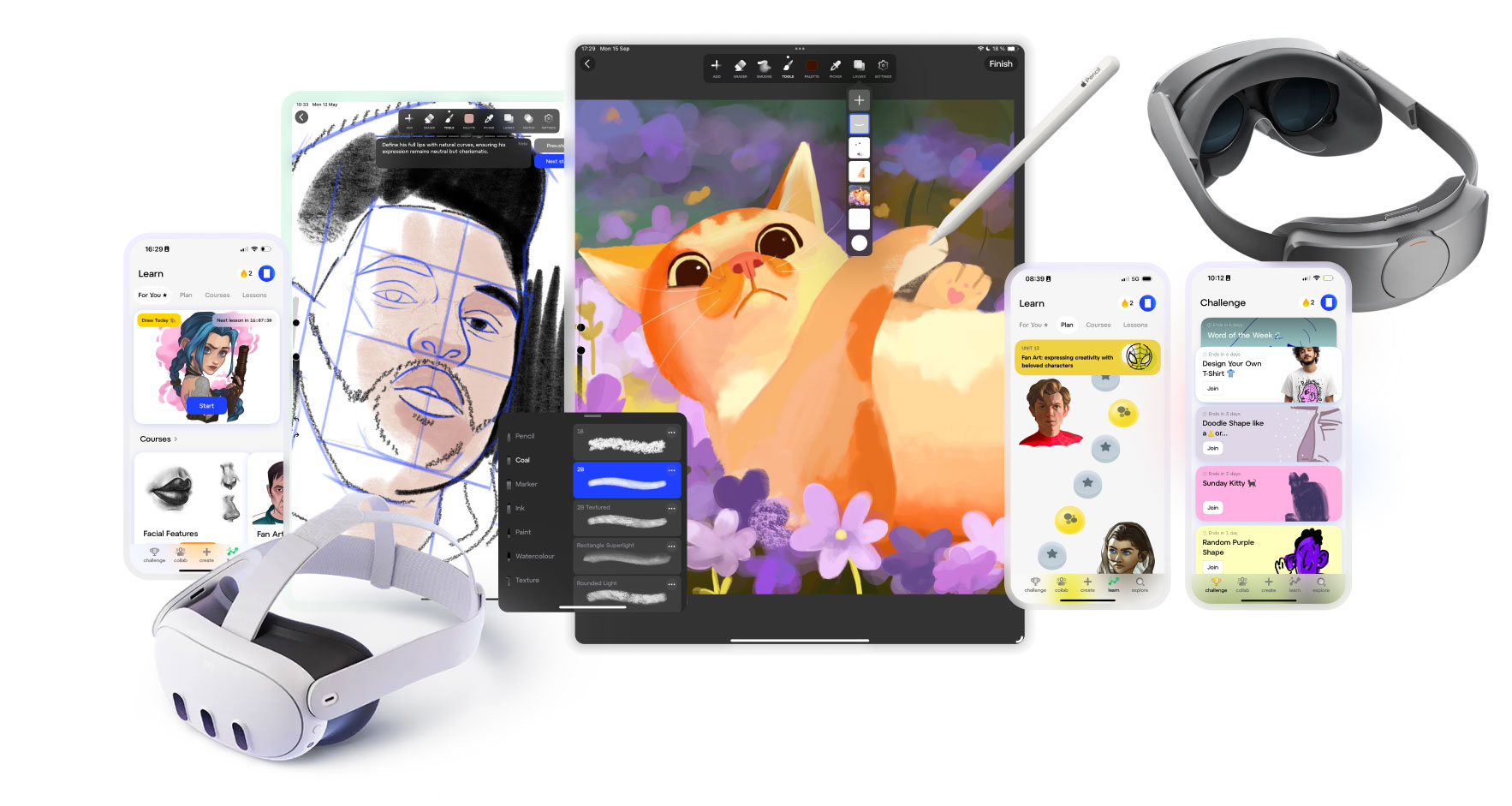
A vibrant community lets you share work. Feedback comes from other artists learning alongside you. Beginners find structure here. The app claims users improve skills ten times in 30 days. That's ambitious, but the framework supports growth. Mural artists get specialized features too.
Sketchar runs on iOS and Android. It also works on Meta Quest and Pico headsets. This makes it unique among AR drawing tools.
The Classic & The Budget Option - Camera Lucida
Sometimes you need simplicity. All those features can feel overwhelming. Clean interfaces work better for certain projects.
Camera Lucida (the app) delivers professional stability without distractions. The image locks onto your paper better than competitors. Professional muralists choose it. Portrait artists trust it. The interface stays clean and focused. No gamification. No community features. Just a solid projection that stays put.

Generic AR Drawing apps fill the free tier. Search your app store for "AR Drawing" or "Sketch & Paint." You'll find several options. These work great for testing the concept.
Hobbyists can experiment without paying. One popular choice offers 700+ templates. Anime characters, animals, and landscapes come pre-loaded. An AI tool converts your photos into line sketches. Opacity adjustments help. Zoom features let you nail details. These apps suit weekend projects perfectly.
Achieving Stability (Gear Note)
Hand-holding your phone while drawing creates disaster. Your lines shake. The projection shifts. Frustration builds fast. Misaligned overlays waste time and paper.
Your phone must stay perfectly still. This isn't optional. A proper mount makes or breaks your AR drawing experience. The KraftGeek Phone Tripod solves this problem. It provides the height you need. Stability comes standard. The projection stays locked from above.
Placement requires thought. Position the tripod legs wide enough for stability. But keep them away from your drawing hand's path. Right-handed artists should angle the stand slightly left. This clears your natural workspace.
Left-handed artists do the opposite. The legs can't block your movement. Test your setup before starting. Reach across the paper. Make sure nothing interferes. Adjust until your hand flows free.
How AR Drawing Apps Actually Function
Your phone becomes a projection device. The camera captures your drawing surface in real time. Software overlays your reference image onto that live feed.

Mount your device above the paper. The overlay appears exactly where you need it. Transparency controls let you see your marks underneath. This eliminates the need for traditional light boxes.
Normal lighting works fine. No darkroom needed. Desk lamps or natural light both function well. The technology adapts to standard working conditions.
RELATED: Top 15 AI & Digital Tools For Painters (2026)
AR Drawing For Specific Art Styles
Different styles benefit from different apps. Match your artistic focus to app strengths. This maximizes your results.
Realistic Portraiture
Da Vinci Eye dominates here. The Strobe feature catches proportion errors instantly. Breakdown Mode teaches proper value placement. Facial features require accuracy. This app delivers it.
Anime And Character Design
Generic AR Drawing apps shine for this. They offer 700+ anime templates. Character poses come pre-loaded. Quick tracing suits this style perfectly. The large template library saves time.
Mural And Large-Scale Work
Sketchar includes specialized mural features. Camera Lucida works excellently too. Both handle projection onto walls. Stability matters enormously at this scale. Professional muralists prefer these options.
Setting Up Your First AR Drawing Session
Preparation determines your success. Follow these steps for optimal results. Proper setup prevents common frustrations.
- Choose your reference image carefully. High-resolution photos work best. Clear lighting shows distinct values. Blurry images create blurry projections.
- Mount your tripod before loading the app. Position it for comfortable reaching. Test your hand movement across the paper. Adjust legs until nothing blocks you.
- Load your reference into the app. Adjust the overlay size to match your paper. Set transparency to about 50% initially. You should see both reference and surface clearly.
- Start with simple subjects first. Basic shapes build confidence. Complex scenes come later. Progressive difficulty creates better learning.
Best Easel Stand For Artists
Conclusion
Art education has evolved across centuries. Methods change while fundamentals remain constant. AR drawing apps represent modern evolution. They don't diminish traditional skills. They accelerate acquiring those skills.
Start today with whatever resources you have. Free apps and basic phone stands work fine initially. Upgrade as your commitment grows. Experience teaches you what features matter. Your needs will clarify through practice.